

Get Fleet Data in 10 Minutes
This guide walks you through the complete integration flow—from authenticating with the API to inviting fleets and retrieving their telematics data. By the end, you’ll have successfully connected a fleet and made your first data request.
What You’ll Build: A working integration that authenticates, invites a fleet, and retrieves live vehicle location data—all in under 10 minutes.
Integration Steps
Authenticate with the API
Exchange your Client ID and Secret for an access token to authorize your API requests.
Prerequisites: You’ll need your Client ID and Client Secret from the Catena team. Don’t have credentials yet? Get access in minutes.
Step 1: Authenticate with the API
Before making any API requests, you need to obtain an access token using your Client ID and Secret. This token authorizes all subsequent requests to the Catena API.
Request an Access Token
Replace <string> with your actual Client ID and Client Secret:
Authentication Response
The response includes your access_token, which you’ll use in the Authorization header for all API requests:
Store your token securely: The access_token expires after the time specified in expires_in (in seconds).
Step 2: Create a Fleet Invitation
Fleet invitations are the gateway for fleets to connect their telematics providers to your organization. Each invitation generates a unique, secure link that you can share with the fleet.
Send an Invitation Request
Include a fleet_ref to track this fleet using your internal identifier:
Invitation Response
The response includes the magic_link that you’ll share with the fleet:
Key Response Fields:
magic_link: The unique URL to send to the fleet for connecting their telematics providerexpires_in_hours: Invitations are valid for 24 hours by defaultfleet_ref: Your internal identifier for tracking this fleet in your systemstatus: Track invitation state (active,accepted,expired, ordeclined)success_redirect_url: The URL where fleets will be redirected after successfully completing the onboarding process
Delivering the Invitation: You can embed the magic_link in your product flow, send it via email, or share it through any communication channel. Configure success_redirect_url to return fleets to your application after they complete the connection process.
Step 3: Fleet Onboarding Experience
When a fleet clicks the invitation link, they enter the Catena Connect onboarding flow. This white-labeled experience can be customized to match your brand.
The Connection Process
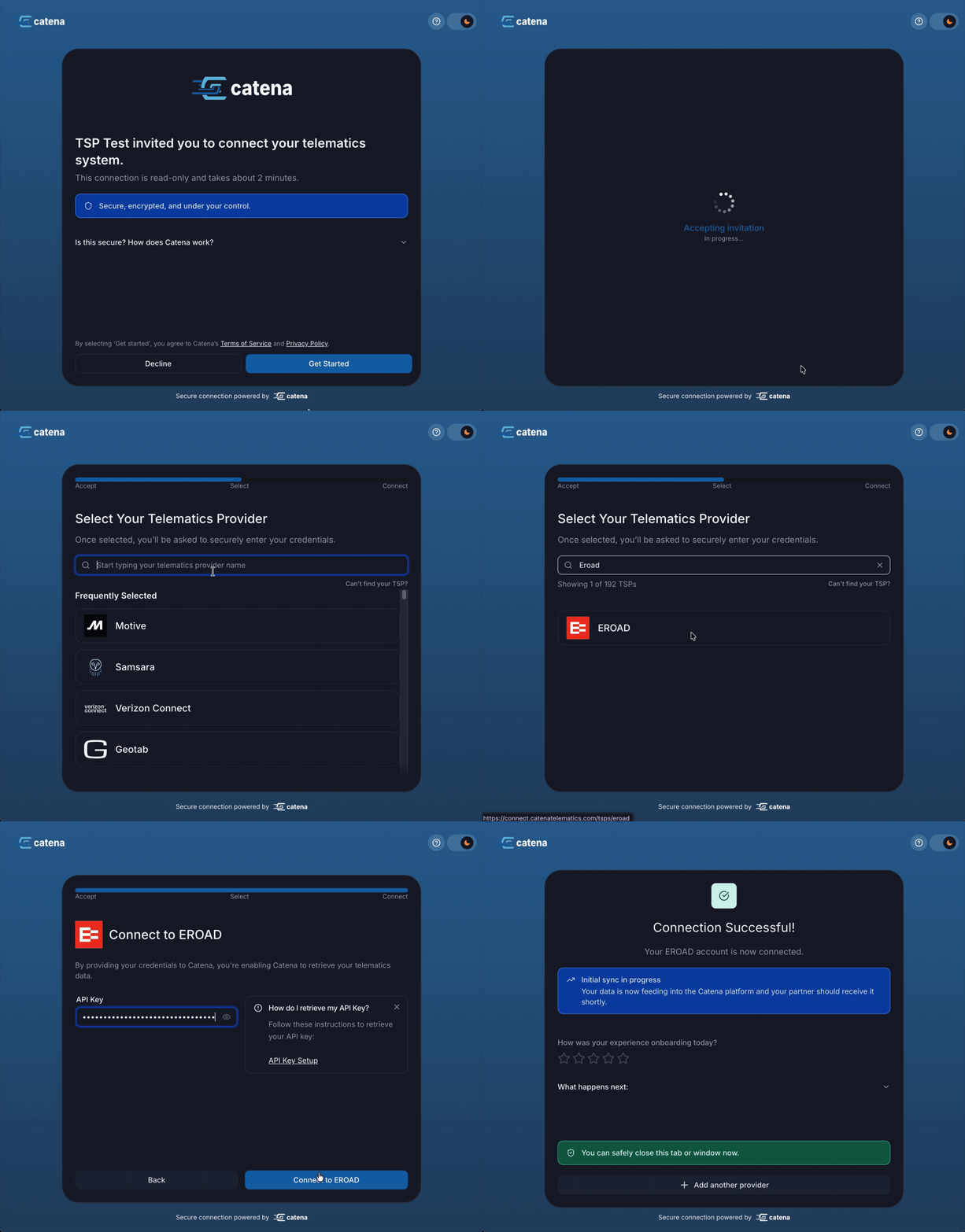
The fleet completes these steps in the Catena Connect interface:
- Review and Accept - The fleet reviews the data sharing agreement and accepts the invitation
- Select Provider - Choose their telematics service provider from our supported options
- Authenticate - Securely input their TSP credentials or API key
- Connection Active - Catena begins ingesting their telematics data in real-time
- Optional - Connect additional TSPs or return to your application via
success_redirect_url
Catena currently supports 288 ELD providers. See the list.
Data Available Immediately: Once the connection is active, telematics data begins flowing through the Catena API within minutes. You can start retrieving vehicle locations, driver information, and other data right away.
Step 4: Retrieve Fleet Data
Now that a fleet is connected, you can access their telematics data through the Catena API. Let’s start by retrieving real-time vehicle locations.
Request Vehicle Locations
Use your access token to retrieve vehicle location data from all connected fleets:
Vehicle Locations Response
The response returns an array of vehicle location records with comprehensive telemetry data:
Understanding the Response:
fleet_id: Catena’s unique identifier for the fleetsource_name: The telematics provider (e.g., Samsara, Geotab, Motive)location.coordinates: GeoJSON format[longitude, latitude]occurred_at: ISO 8601 timestamp when the location was recorded- Pagination: Use
next_pageandprevious_pagetokens to navigate through results
Congratulations! You’ve successfully integrated with the Catena Telematics API.